

Version 1.5.0 of 100 Year Diary adds a way to insert the current time into the diary text.
Some days are written all at once. On other days, you may write a little in the morning, add something at lunch, and come back again at night. This update makes it easier to leave a small trace of that timeline inside the entry itself.
A day has its own timeline
Until now, anything added to the same date was simply stored as one continuous body of text. That keeps the diary simple, but when you revisit an entry later, knowing whether a thought came from the morning or the evening can make the day easier to remember.
This is especially useful when you write a plan in the morning and return later to record what actually happened.
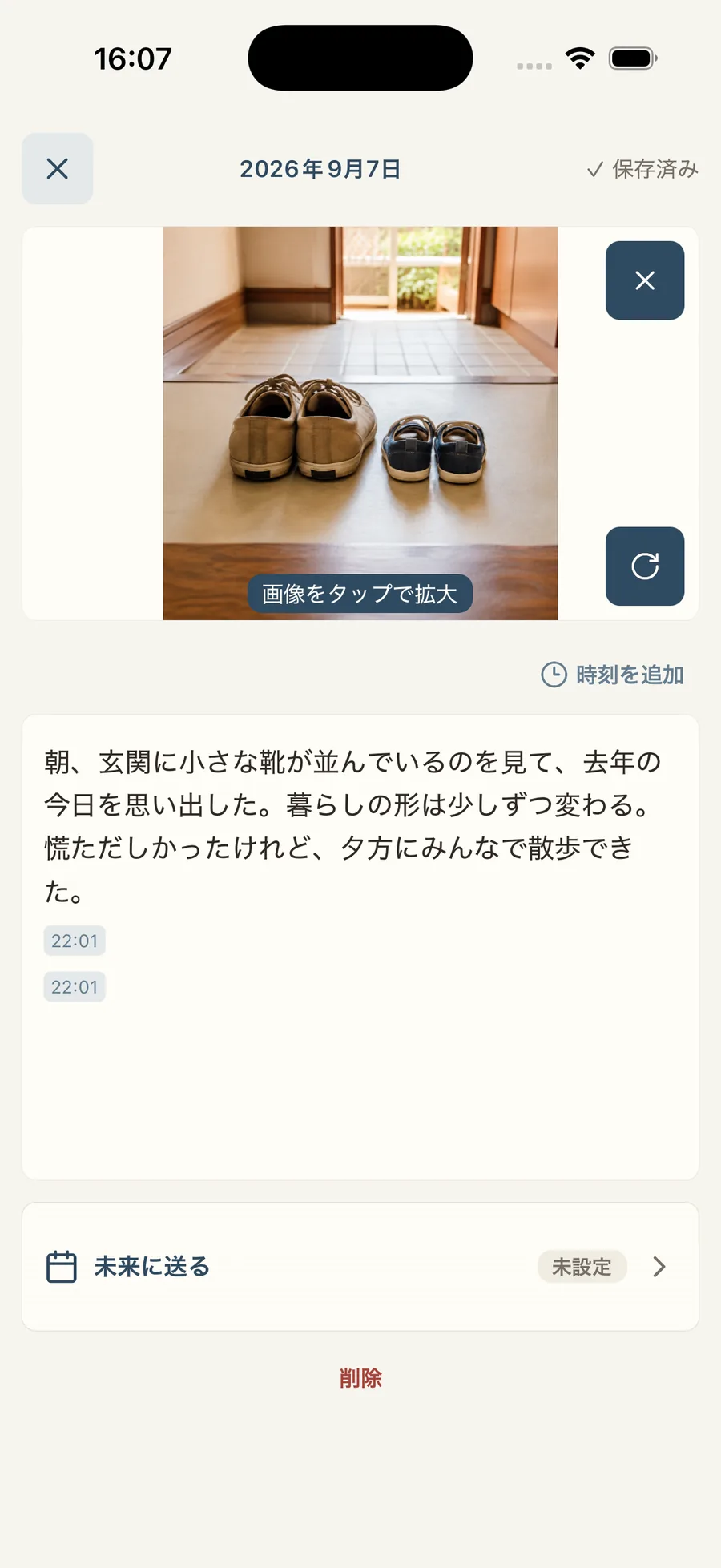
In version 1.5.0, tapping “Add time” in the editor inserts the current time at that position in HH:MM format. A line that contains only a time is displayed as a small rounded chip, so it is easy to distinguish from the surrounding text.
Add a time only when it helps
You do not need a timestamp every time you write.
If you write the whole day at night, the entry can stay exactly as it was before. “Add time” is there for days when you write in several sessions or when the order of events may be useful later.
The timestamp remains ordinary text inside the diary body rather than becoming separate hidden metadata. That means exports, imports, and cloud backup can keep handling it together with the rest of the entry.
100 Year Diary is designed around revisiting the same date years later. A small clue about what time something happened can sometimes make that old memory easier to reconstruct.
I also tried automatic timestamps
During development, I experimented with inserting timestamps automatically.
The app could, for example, add a time when you first started writing that day or when you returned after a long pause. It sounded convenient because it removed one tap.
In practice, however, the behavior became difficult to predict. A pause does not necessarily mean that a new section has begun. You may be editing an earlier sentence rather than continuing the diary. Even with more detailed rules, the user would need to understand those rules to know why a timestamp appeared—or why it did not.
Automation is not very helpful if you have to think about the automation while you are trying to write.
So the final version keeps timestamps manual. The diary changes only when you explicitly choose “Add time,” making the result predictable while still giving you the option when it is useful.

Keep writing predictable
Timestamps are a small feature, but small behaviors matter in something you may open every day.
More automation can reduce the number of taps, but it can also make the editor feel less predictable. For 100 Year Diary, I preferred to add the new option without making the diary text change on its own.
The goal is to leave more context for your future self without adding more decisions to the act of writing today.
Other improvements in version 1.5.0
The photo area in the diary editor has also been refined. Portrait and landscape photos are easier to see in the editing view, delete and rotate controls stay organized around the photo frame, and tapping the photo opens a full view of the original image.
Version 1.5.0 also fixes an issue where, with cloud backup enabled, automatic backup might not be re-evaluated after the diary was updated.
I will keep improving both the small details that make daily writing comfortable and the safeguards that help those entries remain useful for years.